Find Saved Design Assets with the Clues You Remember
You remember a blue illustration with thick outlines. It might have been a reference for a packaging project, or something you saved while working on a poster. You can picture it well enough to recognize it, but you can't remember its filename.
In Eagle, start with the clue you trust most: a color, an image's proportions, an existing tag, or a known file format. Use it to narrow the list before looking through the results. If you have a reference image or meaningful text attached to the saved assets, AI Search offers two other ways to search.
Why saved assets can be hard to find
Project folders keep assets connected to the work you saved them for. Months later, you may remember something else about an asset: its blue background, its wide layout, or how it could fit a new brief. References with those qualities may be spread across folders for different clients and years.
When you know the project and there are only a few files to check, browsing that folder may be enough. As references accumulate across projects, the same approach can mean opening several folders and scanning similar thumbnails. You may end up repeating research you've already done, or choosing another reference because you can't locate the one you had in mind.
In Eagle, you can search by tags, colors, proportions, and file types to find a smaller set of candidates to inspect. Start with what you remember; you don't need to reorganize the whole library first.
Narrow your asset search with filters
Begin with a clue you're confident about, then add another reliable condition if the list is still too broad. A condition can exclude the asset you want, so avoid turning a vague recollection into an exact requirement.
First, check which Eagle library and folders you're searching. If you don't remember the project, leave the search broad enough to include other project folders. These methods search assets already saved in Eagle.
Match the clue to a condition
Click the funnel button on Eagle's toolbar to open the filter bar. The filter guide explains the available controls; these are the most useful starting points for this task.
| What you remember | What to try | What that condition tells you |
|---|---|---|
| A prominent color in an image or a video's thumbnail | Color: select a swatch or enter a color code | Finds images or videos based on similar colors in the image or video thumbnail. It doesn't analyze the whole video or identify a subject or design style. |
| A wide, tall, or roughly square image | Shape / aspect ratio | Narrows by the image's proportions. A person's position within the image still needs a visual check. |
| A theme or intended use you tagged | Tags | Searches labels already attached to assets. An asset needs the matching tag to appear, even if it looks relevant. |
| A definite format, such as MP4 or OBJ | Types | Limits the list by file format. Remembering “a video” alone doesn't tell you its extension. |
A color filter can help even if you never added a “blue” tag: Eagle uses color information from the image. If you remember only a general blue, start with a nearby swatch. If you have a color code from a brief, you can enter it instead. Either way, the results are color-based candidates to inspect. See color filtering for the controls.
You can also filter videos by color: Eagle uses the video's thumbnail. For example, a video with a mostly black thumbnail will appear when you select a black swatch, as long as other filter conditions don't exclude it.
You can use Set as Video Thumbnail to choose a frame that best represents the video or that you'll recognize at a glance next time. The new thumbnail helps you identify the video while browsing. Eagle also uses the new thumbnail's colors when you filter by color later, giving you a search clue that better matches how you remember the video.
For image proportions, consider the whole saved image, not just an element inside it. A tall poster photographed on a wide desk may be saved as a landscape image. Filtering for a portrait image could remove that reference.
Combine clues, then loosen the uncertain ones
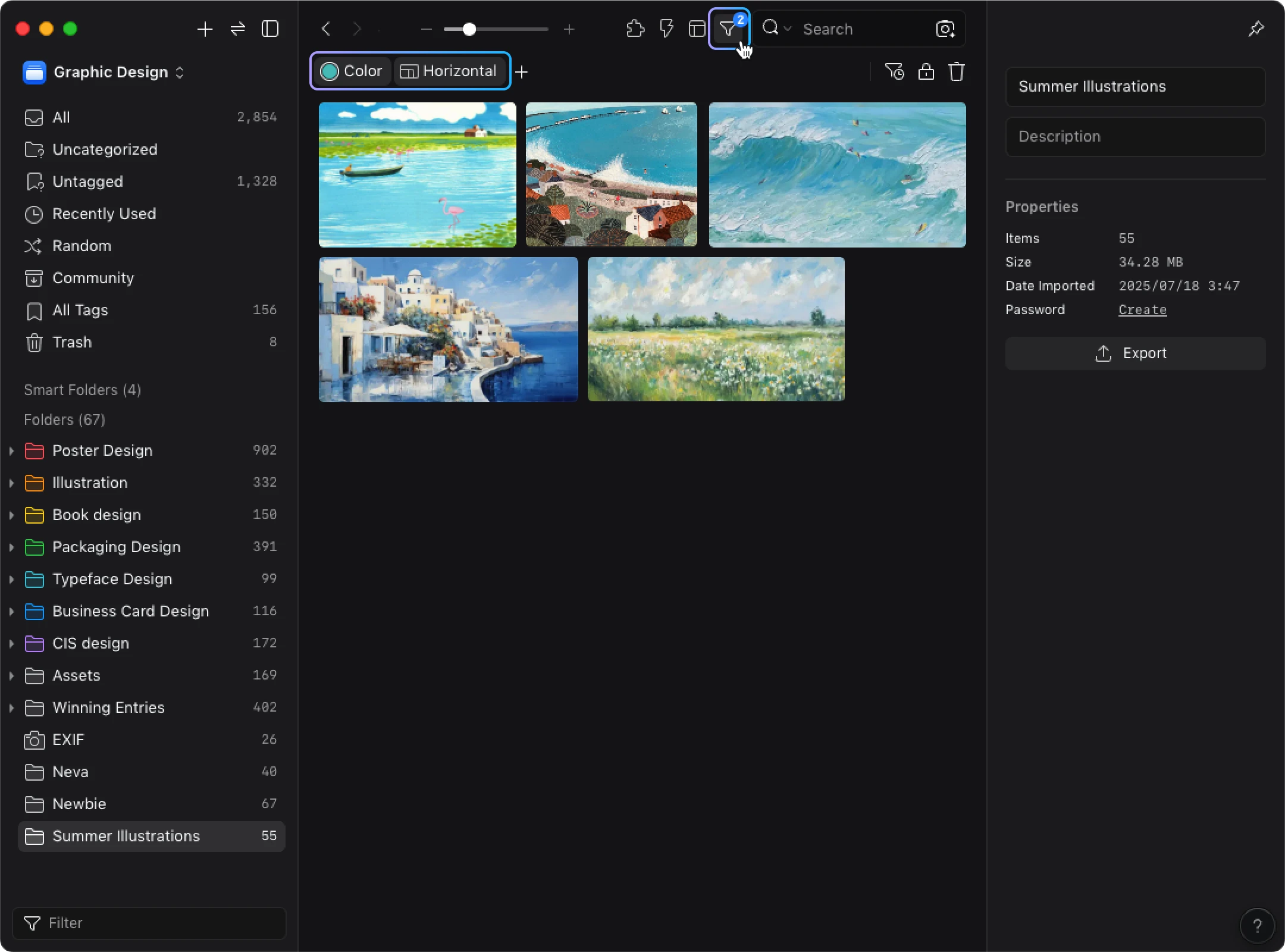
Suppose you're looking for a saved illustration with a broad blue area. You remember that the image was wider than it was tall, with a figure toward the left, but you're unsure which project it belonged to.
- Start with Color. Select a blue swatch. This uses the clearest remembered feature without requiring a filename or tag.
- Add the image's shape if needed. A landscape condition can help separate wide references from tall ones. Don't specify an exact ratio if you only remember “wide.”
- Inspect the remaining images. Look for the thick outlines and the figure's position. The shape filter checks dimensions; you'll need to judge the composition by looking at the images.
If the list is still too broad, add a tag you know you used or a format you clearly remember. Use “illustration” as a tag condition only if you applied that label to the asset.
If results become sparse or the expected image disappears, remove the condition you're least sure of. For example, keep blue and remove landscape if you might be remembering a crop rather than the full image. Try a nearby blue if the color memory is approximate. Relax one condition at a time so you can see which choice was excluding plausible candidates.
Dates can help if you remember when you imported the asset into Eagle. Use an added-date range for that clue. The year of the project shown in the image may be unrelated to when you saved it. If you're unsure about “sometime last spring,” widen or remove the date condition before concluding that the asset is missing.
Use tags to connect references across projects
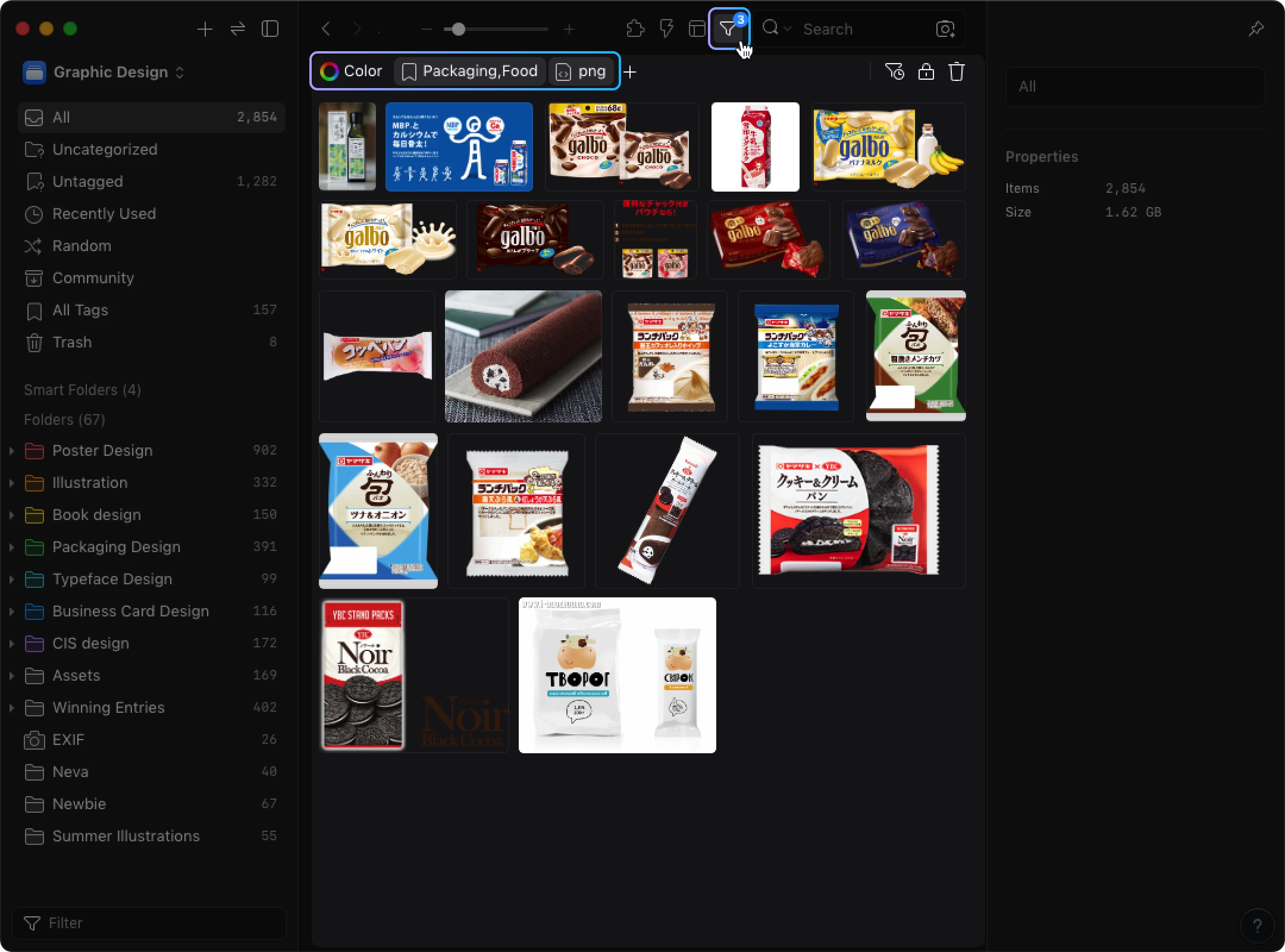
A tag such as packaging-reference can bring together an illustration, a motion reference, and a 3D mockup from different project folders, provided you've applied it to each asset. The tag records an intended use that the file format alone can't tell you.
In the Tags filter, the choice between Any and All changes which candidates remain. Imagine you've used packaging-reference and line-art:
- Use Any when the asset could have either tag. This keeps both routes open if you don't remember how you labeled it.
- Use All when you know it has both. This narrows the search to that overlap.
You can also exclude tags. If you're certain the reference wasn't tagged photography, set the logic to All and right-click that tag to exclude it. Be careful with broad labels you may have used inconsistently. The tag filtering guide covers these combinations and the stricter Equals option.
Choose a file type when you know the format
If you remember saving an MP4 motion reference, open + → Types in the filter bar and select MP4. If you know a 3D mockup was an OBJ file, select OBJ. Eagle lists both among its supported formats.
Pair a known file type with an existing purpose tag to narrow a mixed collection. For example, MP4 plus packaging-reference is useful when you're sure of both details. If you remember only that it was a video, leave the type condition open until you've checked; the saved file might have another video extension. The Types guide explains selection and exclusion.
Stop adding conditions once you have a manageable set of candidates to inspect. Check their details against what your brief needs: if you need the exact original asset, confirm that you've found it. If a similar reference would work, a different result may be useful too.
Search with a visual reference or description
With a reference image, you can search for similar images in your library. With a description, you can search by meaning when the saved assets contain relevant text. Choose the route that fits the input you have.
Both modes are part of the official AI Search plugin. Install it through Eagle's Plugin Center on an up-to-date Eagle 4.0 installation. Follow the setup guide to download the required models, then enable indexing for the library you want to search.
Setup selects a mode for your hardware. Windows with NVIDIA and Apple Silicon Macs support GPU acceleration; Windows with AMD or Intel graphics and Intel Macs use CPU mode. Initial indexing takes time, especially in CPU mode.
With a reference image: drag an image from Eagle onto AI Search's Reverse Image Search button beside the search bar. For an external reference, copy the image, click that button, and paste.
The results are visually similar images from your library. Inspect their layout and details to decide whether you've found the original or a useful alternative. This mode compares images; it doesn't match the contents of videos or 3D models.
With a description: add Natural Language Search using + in the filter bar, then enter your description. It uses the meaning of your description to search existing filenames, descriptions, notes, and other searchable text. It does not read the image's pixels to answer your text query.
A query such as “Blue illustration with a figure on the left” needs relevant text to match. A random filename and empty notes leave little to work with. If you have neither useful text nor a reference image, use the available filters and inspect the results. The AI Search introduction explains the two modes in more detail.
To look for an image's source on the web: once you have the image, Eagle's separate Search by Image command opens external reverse-image search services. Those results concern websites and possible versions of the image. AI Search's local processing does not apply to this web search, and finding a source does not establish permission to reuse the work.
Make useful assets easier to find next time
When you find something worth reusing, add the context that was missing. Give it a descriptive filename if the old name didn't help. If you remembered why you saved it but couldn't search for that reason, add a short note such as “Wide blue illustration; reference for a packaging side panel.” That gives a future search some useful text without requiring a full catalog entry.
Use a small set of consistent tags for purposes that recur across projects. Apply packaging-reference when it describes how you expect to use an asset, and reuse that spelling for the same purpose. You can update the useful assets you revisit without stopping to retag the entire collection.
If you keep rebuilding the same combination of conditions, use Saved Filter to reuse it. Save a combination you expect to need again, such as an existing purpose tag and a file type. Saved Filter stores the conditions, rather than a fixed list of assets. The matching assets can change as your library changes. For a one-time search, you can leave the conditions unsaved.
The reference organization guide covers more options for reorganizing a collection. For the asset you've just found, leave enough context to help you search for it the way you're likely to remember it.
Related Posts