
Note: AI Models requires Eagle 4.0 Build 20 or later to function properly. Additionally, different AI models may vary in capability and performance, and AI may still produce incorrect or unexpected results.
What is AI Models?
AI Models is a unified AI model configuration center released by the Eagle team. Once installed, you only need to configure your AI models once — all future AI plugins built on top of it (such as AI Search, AI Action, etc.) can use them directly without repeated setup.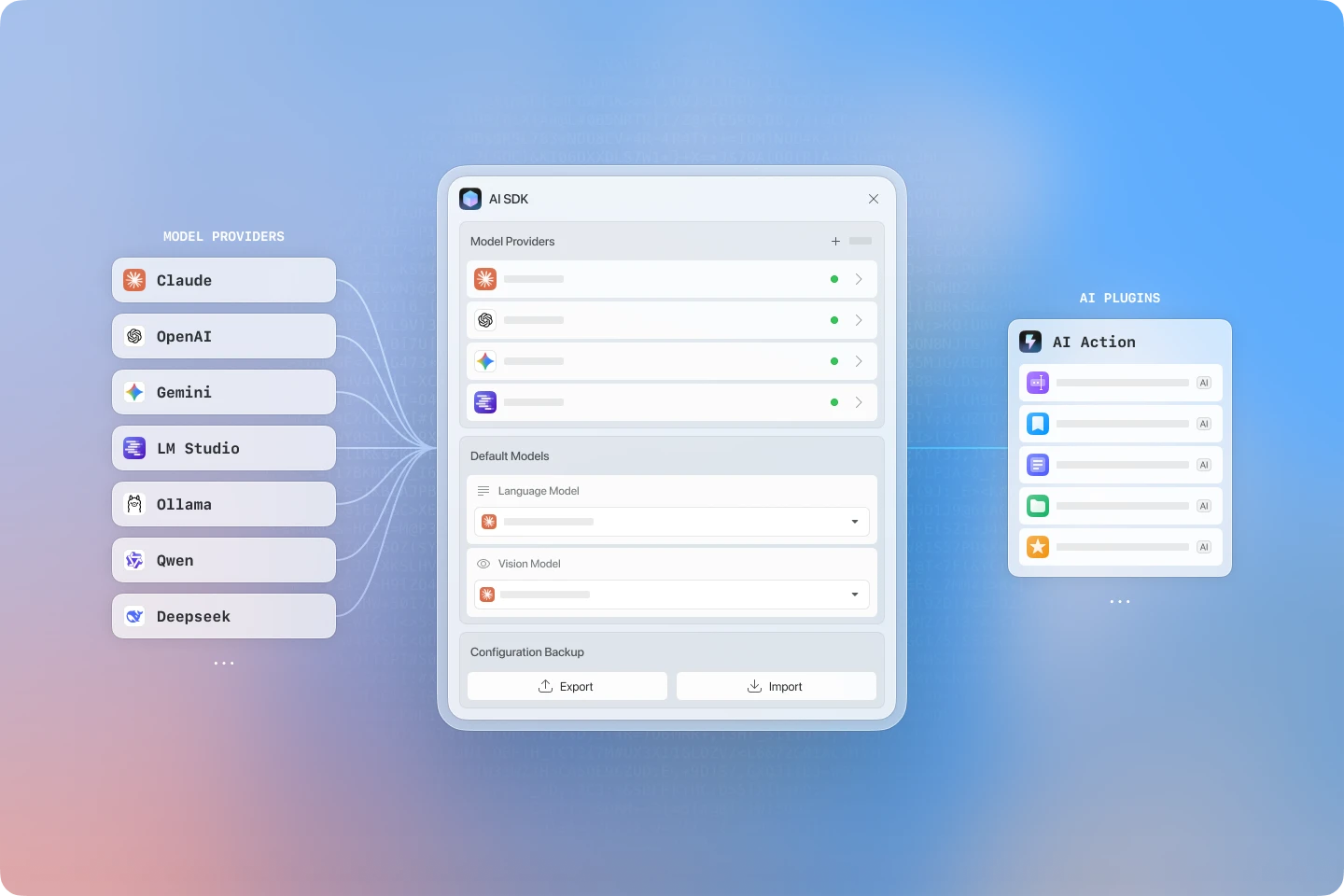
Installation
- Open Eagle and go to the Plugin Marketplace
- Search for "AI Models"
- Click Install
Setup Steps
Step 1: Open AI Models
Go to Eagle's Preferences and find "AI Models" in the left sidebar.
On first launch, you'll see a blank screen — this is normal, as you haven't added any model providers yet.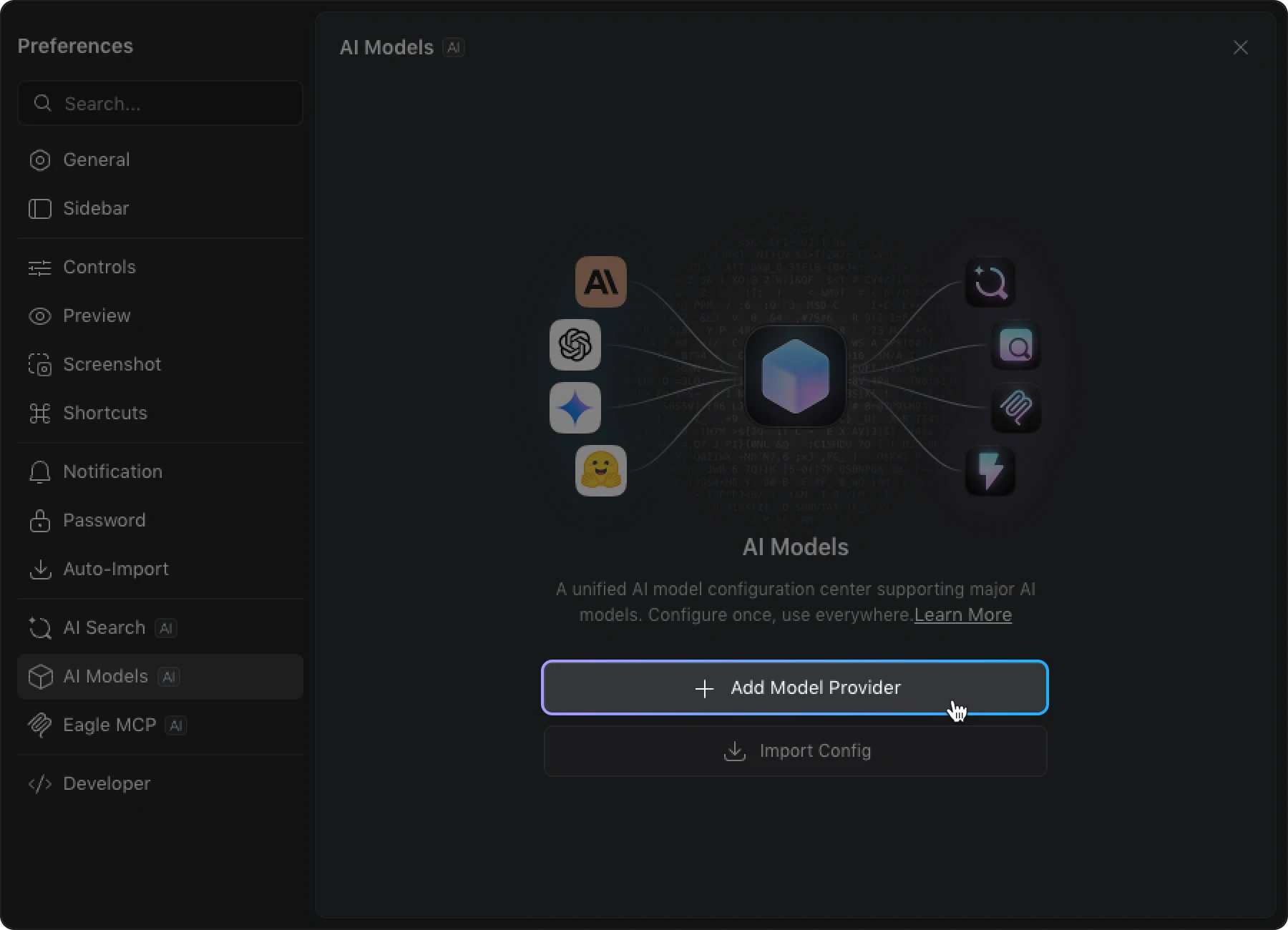
Step 2: Add a Model Provider
Click the "Add Model Provider" button, then select your preferred provider from the dropdown menu.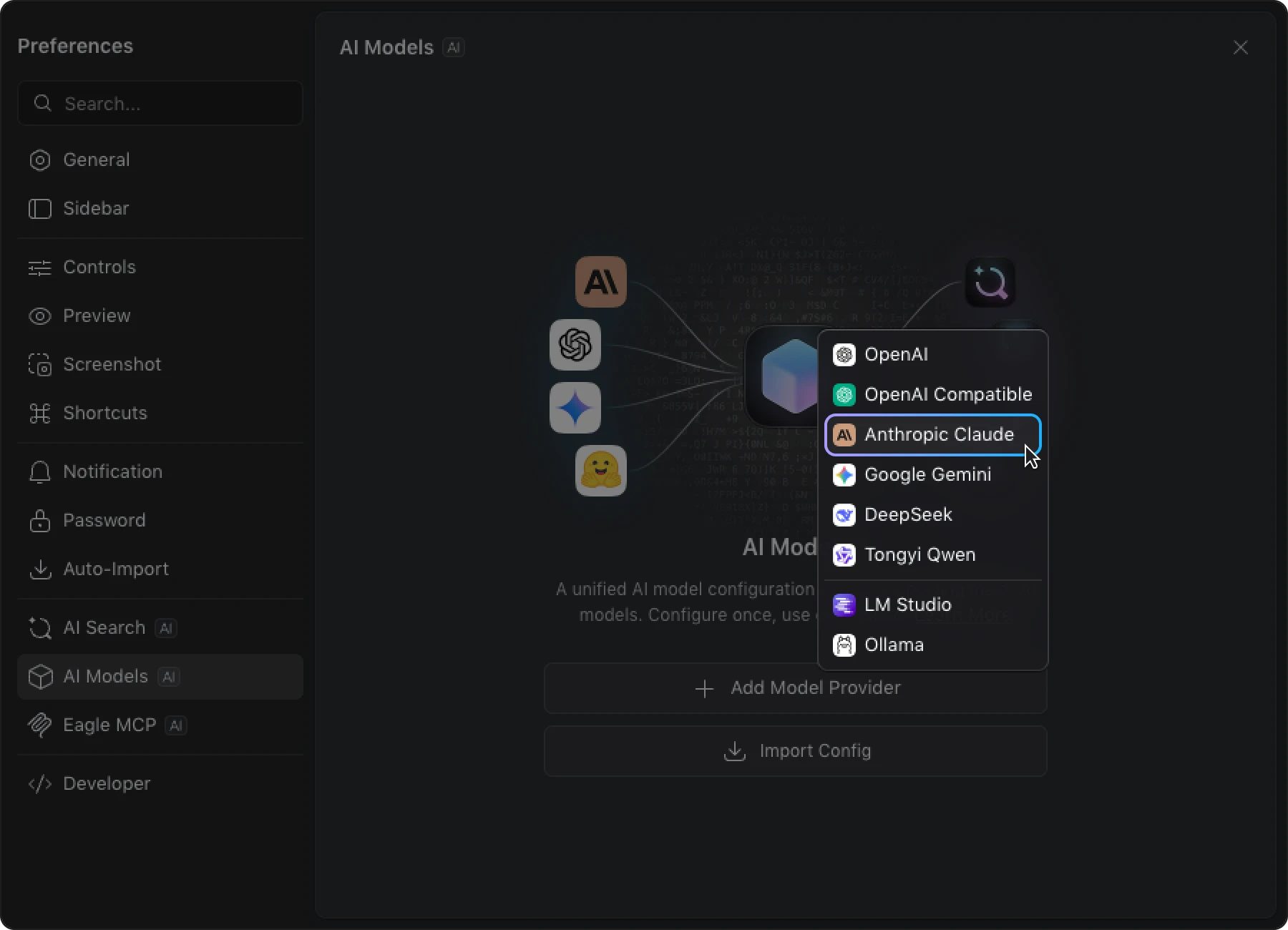
The following providers are currently supported:
- OpenAI — GPT-4o, GPT-4, GPT-3.5, etc.
- Anthropic Claude — Claude 4, Claude 3.5, etc.
- Google Gemini — Gemini 2.0, Gemini 1.5, etc.
- DeepSeek — DeepSeek-V3, DeepSeek-R1, etc.
- Tongyi Qwen — Qwen series models
- LM Studio — Local models (no API Key needed)
- Ollama — Local models (no API Key needed)
- OpenAI Compatible — Any service with an OpenAI-compatible API
We'll use Anthropic Claude as an example below.
Step 3: Enter Your API Key
After selecting a provider, you'll see a configuration form with the following fields: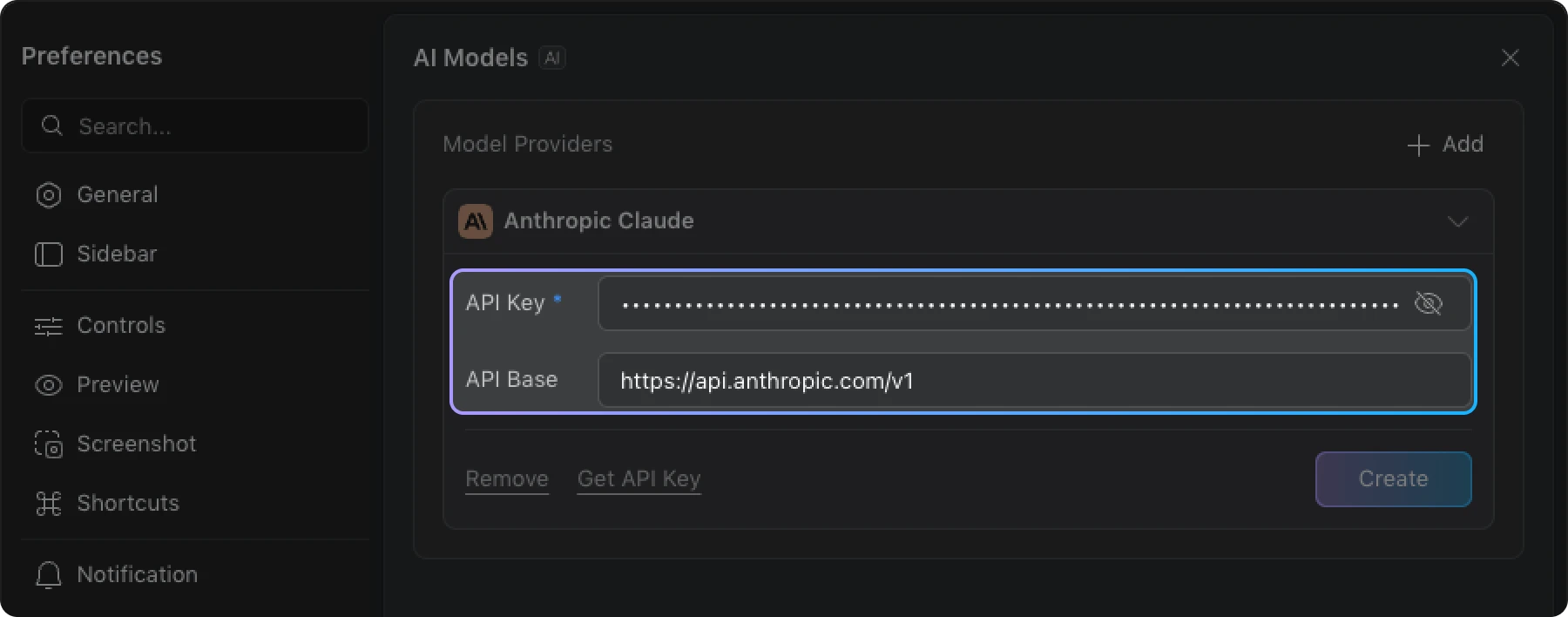
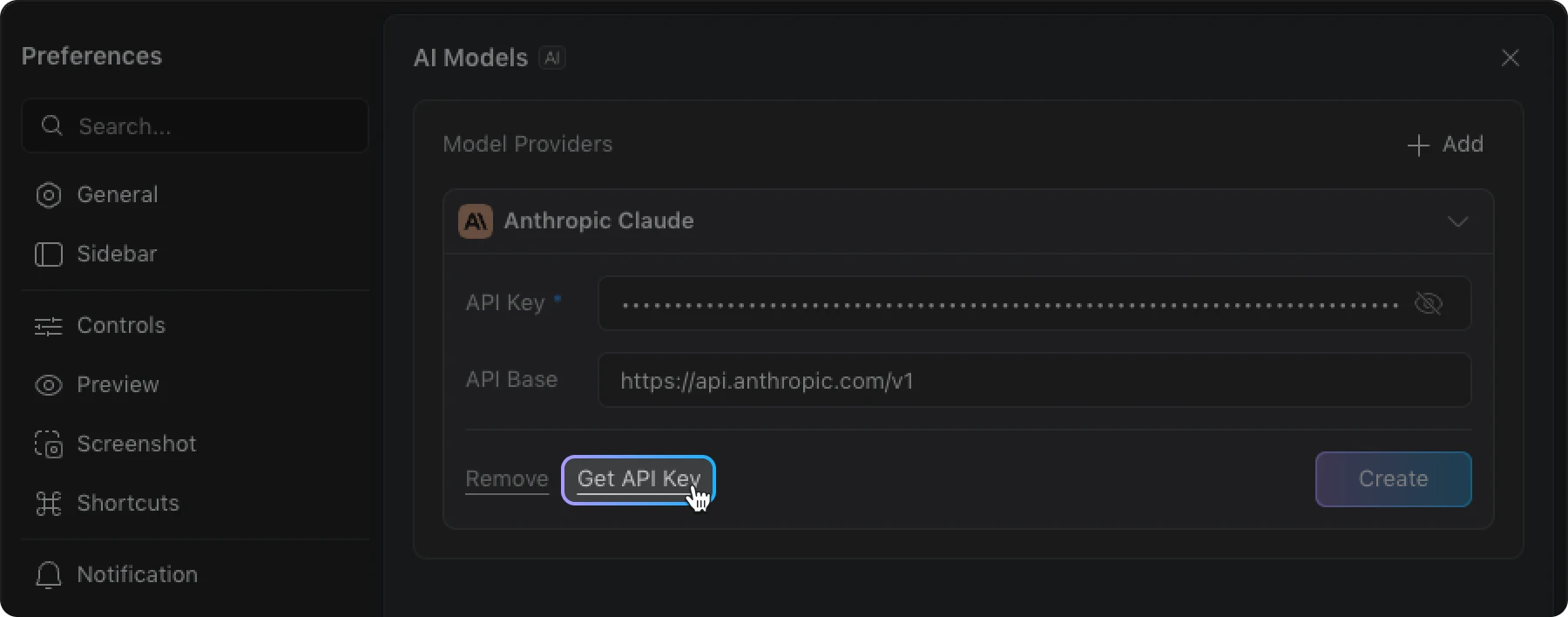
- API Key: Paste the key you obtained from the provider. If you're not sure how to get one, click the "Get API Key" link below — it will take you directly to the provider's key creation page.
- API Base: This is pre-filled with the default value. In most cases, you don't need to change it.
Once filled in, click the "Create" button.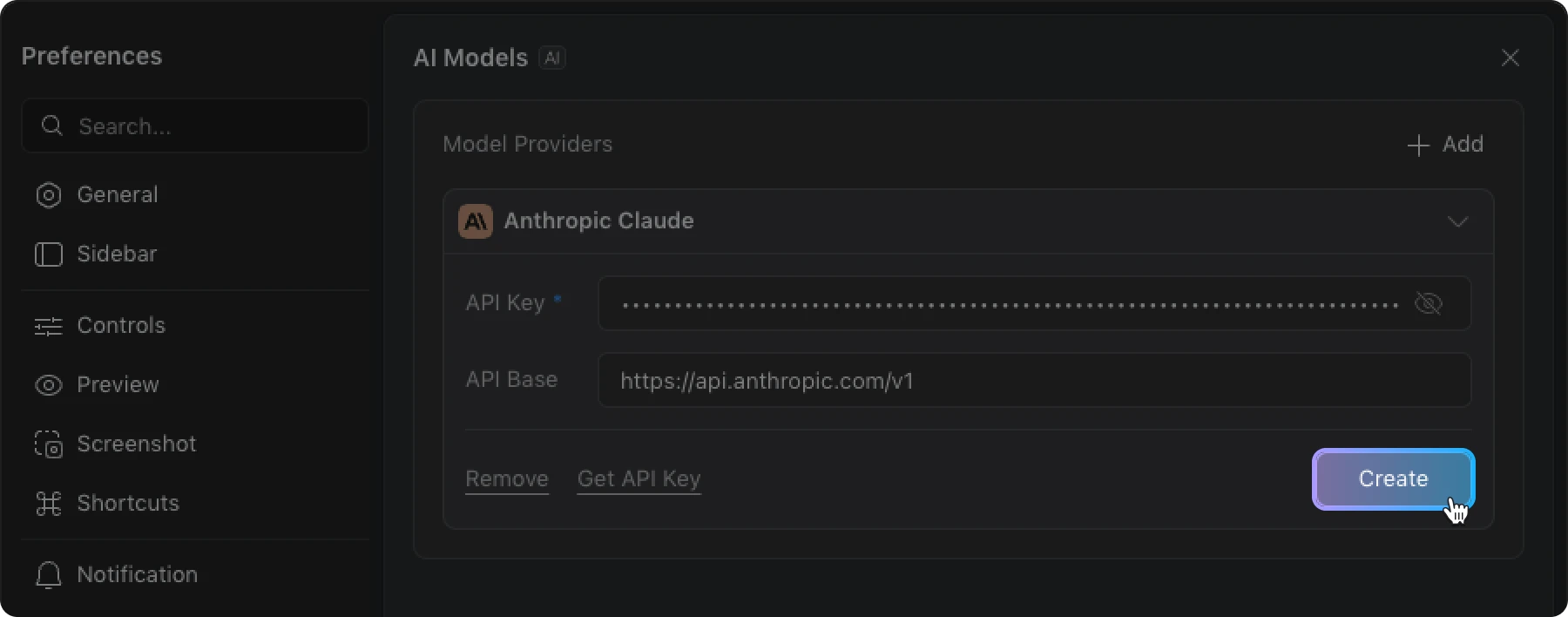
Step 4: Set Default Models
After creation, a "Default Models" section will appear at the bottom of the page. Here you can set two types of default models: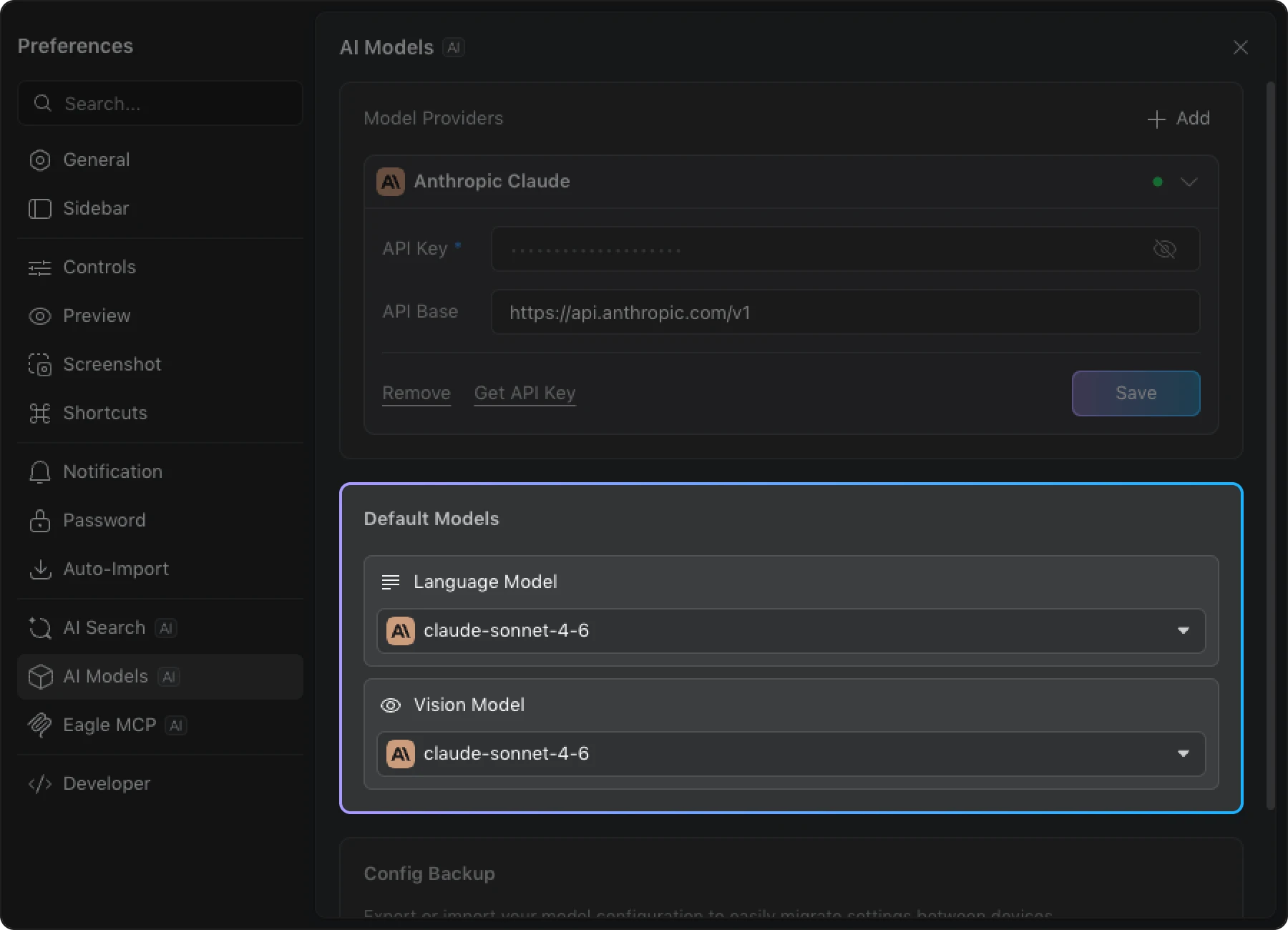
- Language Model: Used for text conversations, content generation, etc.
- Vision Model: Used for image understanding, reverse image search, etc.
Once set, other plugins built on AI Models will automatically use your selected models.
Step 5: Add More Providers (Optional)
If you'd like to use models from multiple providers, click the "+ Add" button in the top right corner to add more.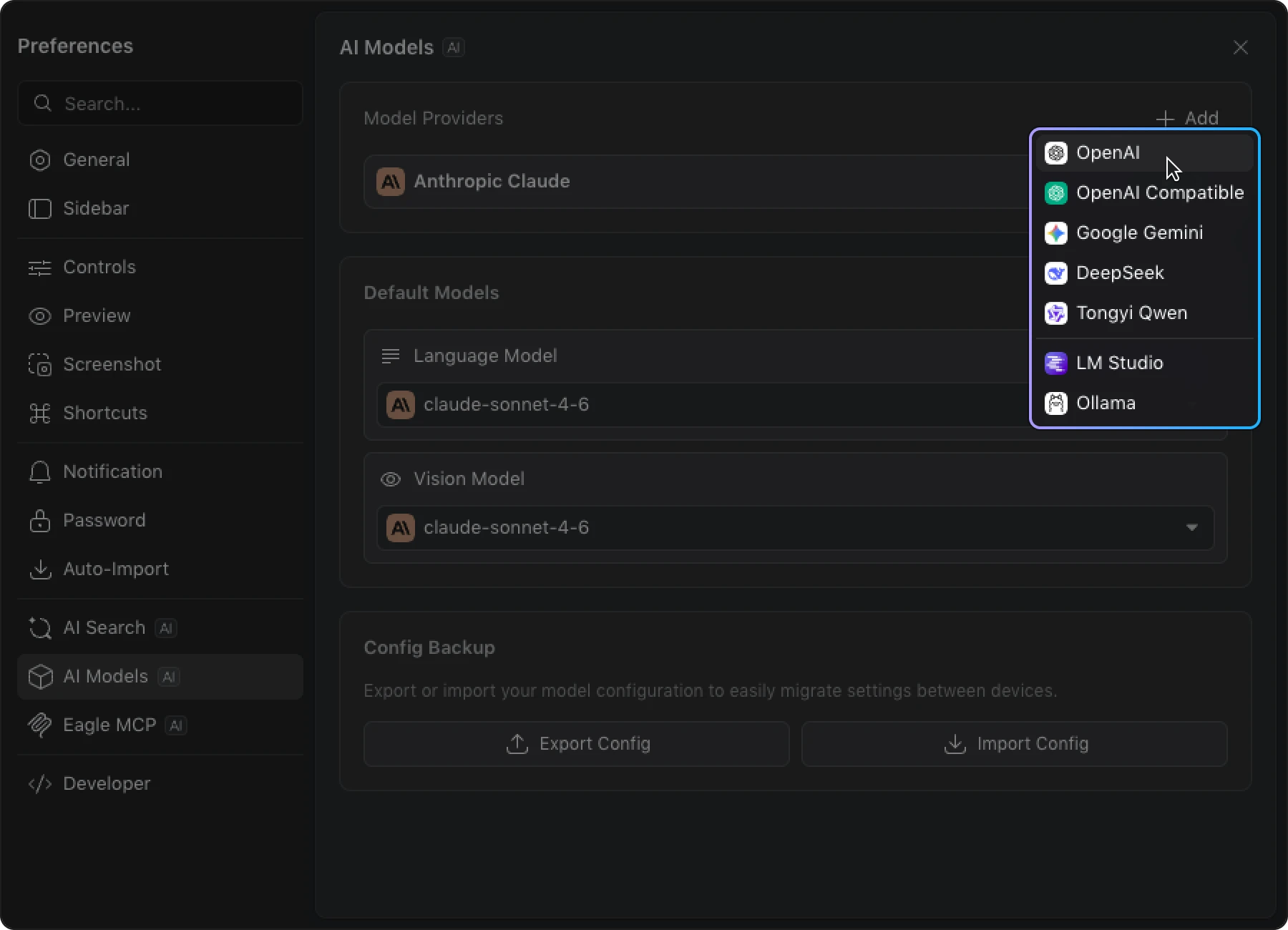
Using OpenAI Compatible Mode
If your preferred provider isn't in the built-in list (e.g., Groq, Mistral, etc.), select "OpenAI Compatible" mode.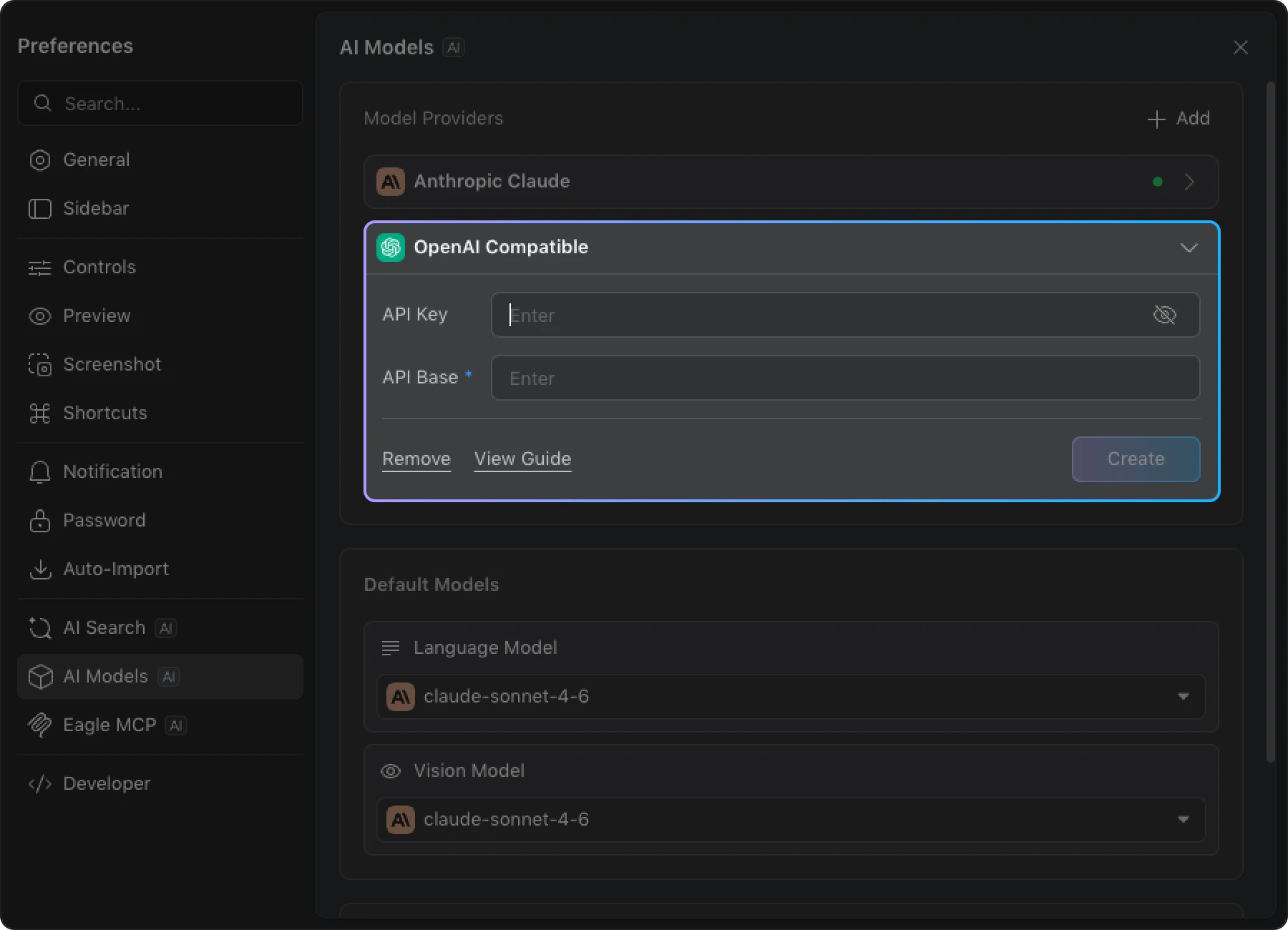
In the configuration form, enter:
- API Key: The key provided by the service
- API Base: The API endpoint URL provided by the service (this field is required)
The vast majority of model services today support the OpenAI-compatible interface, so the actual range of usable models is far broader than the list suggests.
Config Export and Import
If you have multiple devices or want to share your configuration with a colleague, use the backup feature at the bottom of the page: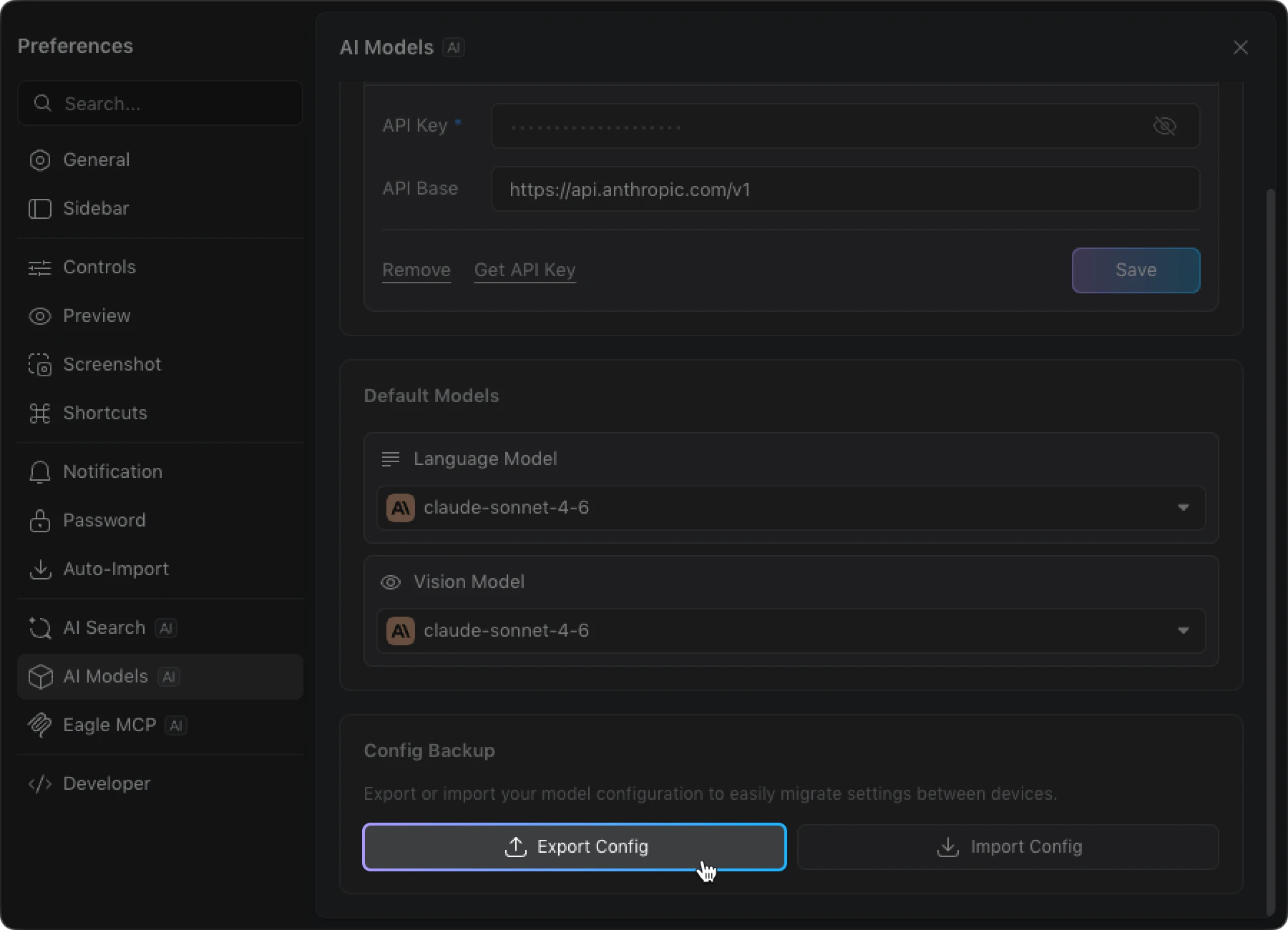
- Export Config: Save all your current model configurations to a file
- Import Config: Load model configurations from a file
When importing, if duplicate providers are found, you'll be asked whether to keep the existing settings or overwrite them with the new values.
FAQ
What's the point of installing it now?
AI Models is an infrastructure plugin — it doesn't provide AI features directly. Instead, it provides unified model configuration for other AI plugins. When you install plugins built on it (such as the upcoming AI Search, AI Action, etc.), they'll automatically use the models you've configured here, with no repeated setup needed.
Do local models require an API Key?
No. LM Studio and Ollama are locally-run services. Just make sure the corresponding service is running on your machine.
I'm a developer. How do I build plugins on AI Models?
See the developer documentation: Eagle AI SDK Developer Guide