
The search bar can help you quickly find the images you need and provide many useful features to improve your search efficiency. Let you find the images that best meet your needs in the shortest time. 
Search Scope
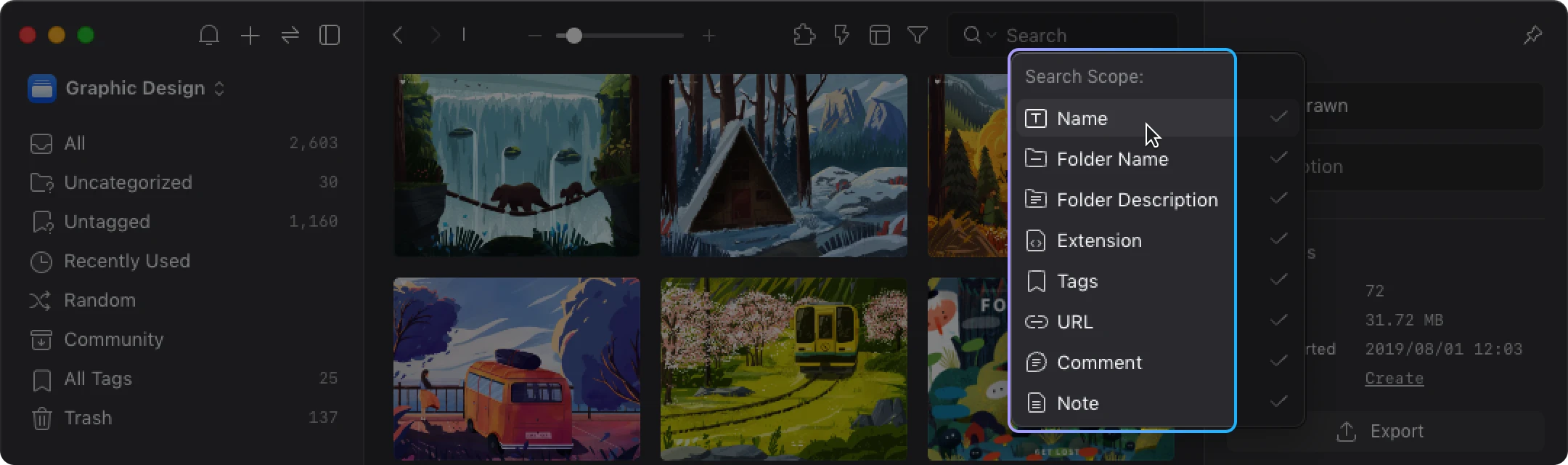
Click the magnifier icon next to the search bar and you can custom the search scope.
- Name
- Folder Name
- Folder Description
- Extension
- Tag
- URL
- Comment
- Note

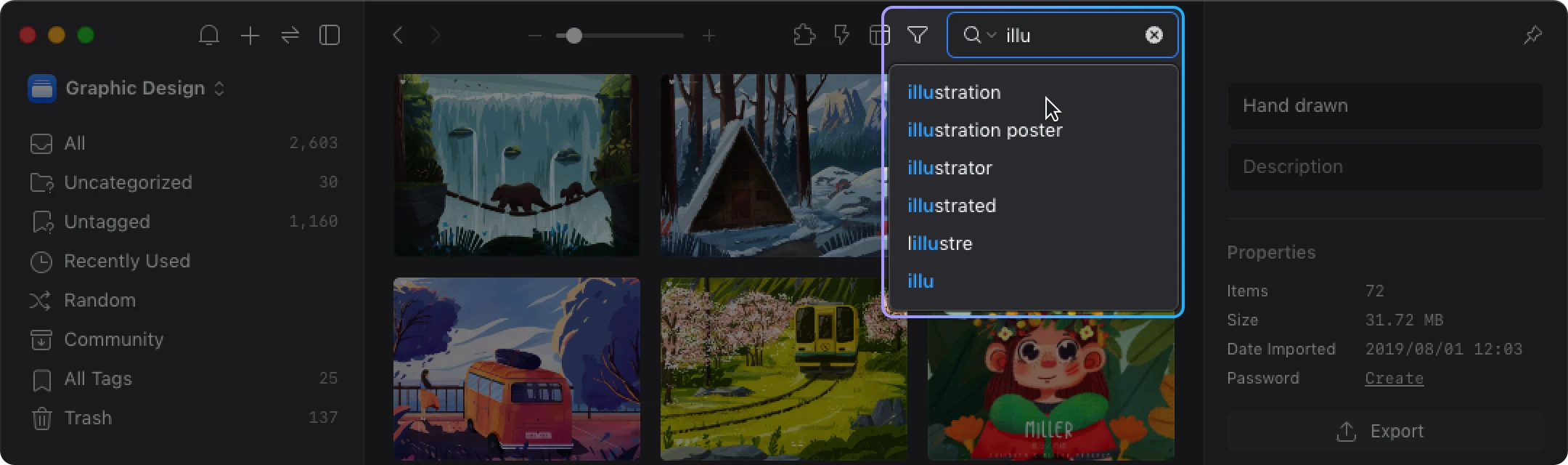
Suggestions
The search function will automatically suggest content that is relevant to your input.
Recent Searches
When you click on the search bar, Eagle will automatically display the five most recently searched keywords and you can click to view the search results. 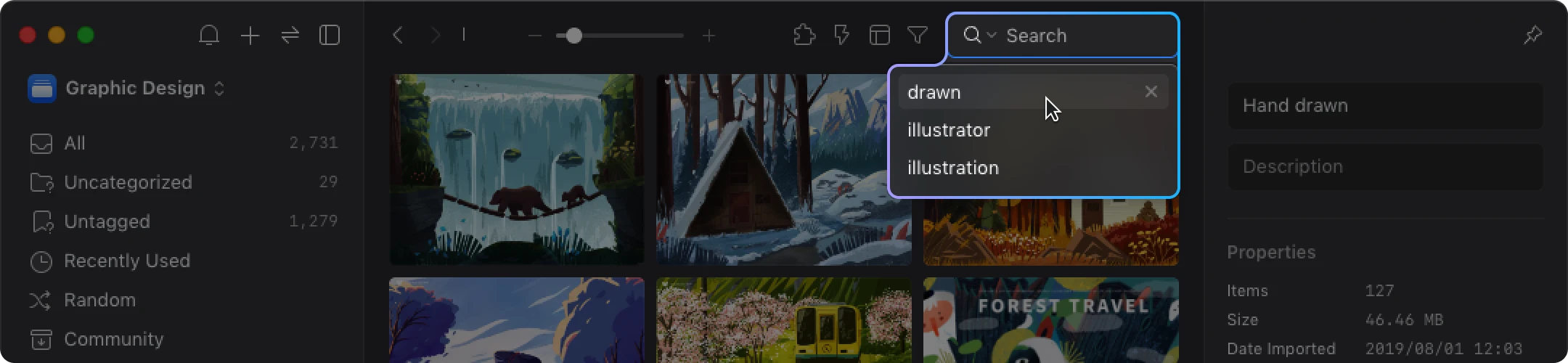
Search Skills
Use search skills to make it easy to find the images that best meets your needs.
- Keyword Exclusion
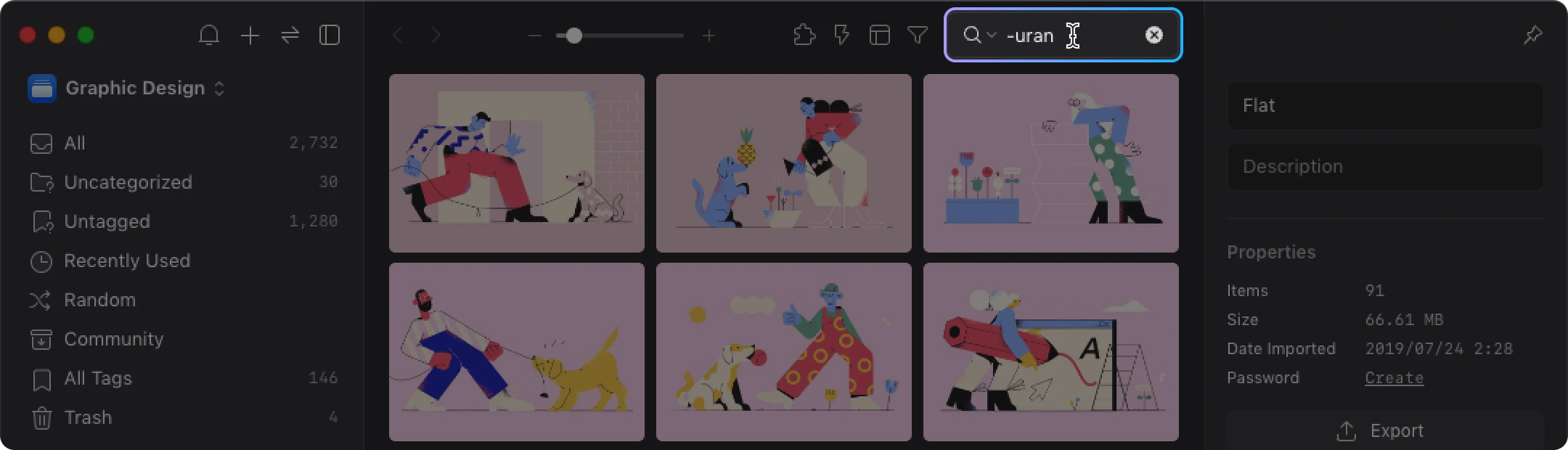
Use " - " symbol before a keyword you do NOT need. The keyword with "-" symbol will be excluded from the search result.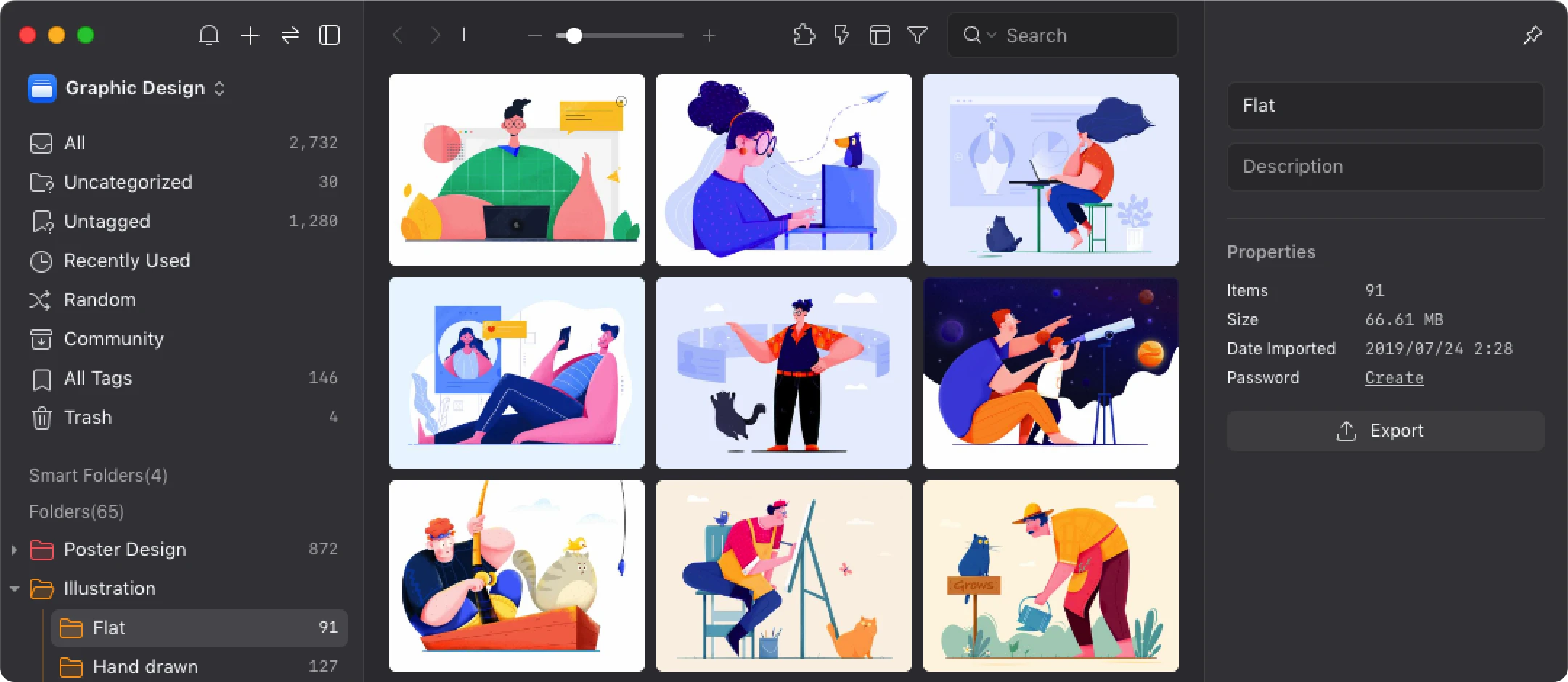
If you want to delete the record of keywords that have been searched before, simply click the "X" at the back.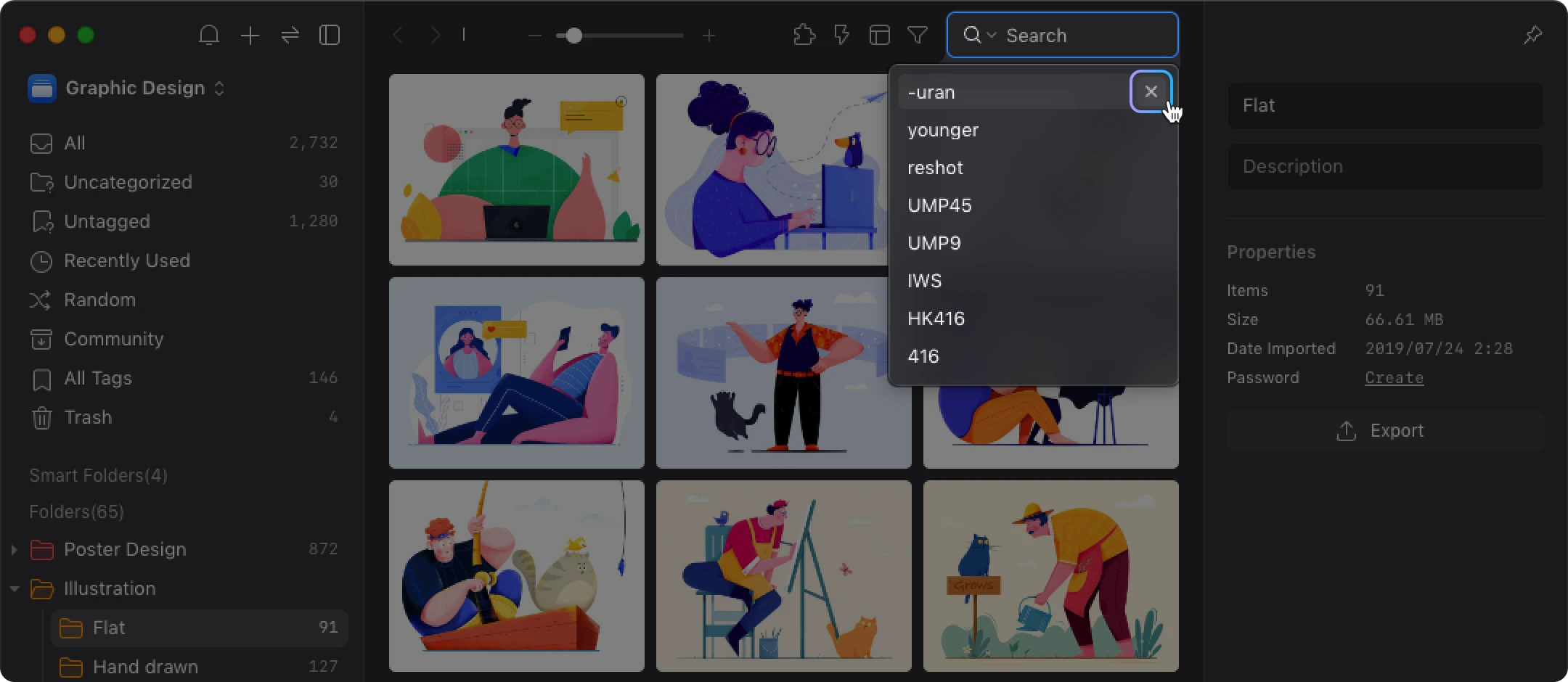
-
Separate Keywords
When you need to search by two or more keywords, you can separate the words by space. By doing so, you can get all results that are related to the keywords. -
Use OR and parentheses
Use
ORor||to indicate an OR relationship. Use parentheses()to group multiple conditions. For example:(cat OR dog) black→ search for black cats or dogs(javascript || python) tutorial→ search for JS or Python tutorials("cat food" || "dog food") -pet store→ search for cat food or dog food, but exclude pet stores